Configuring Outlook RPC over HTTP Client
 Outlook 2010 provides many different ways to connect to an Exchange Server, including MAPI, POP3, IMAP, and RPC over HTTP. Favouring the RPC over HTTP method, commonly referred to as Outlook Anywhere, we’re going to take a look at this protocol including how it works, how to set it up, and how to troubleshoot it.
Traditionally, Outlook clients connected to Exchange using MAPI connections, which is to say over RPC. Remote Procedure Calls (RPCs) are a tried and true method of connecting clients to servers for a variety of purposes, but have a couple of disadvantages for a distributed company. RPC clients must first connect to the RPC end point mapper, on TCP port 135, to learn the particular dynamically assigned port that a service is using at the moment, and then make a connection to that port. Those dynamically assigned ports could be any one from 1024 to 65535 (depending on the service and operating system version). While that works okay on a private network, it is not the way to connect remote clients to servers over the Internet as almost all critical Windows services use RPC. In more secure environments where firewalls separate clients from servers, having to open so many ports caused many a security admin heartburn. RPCs are also notoriously intolerant of latency. When your client is on the far end of a latent WAN connection from the Exchange Server, performance suffers.
Microsoft introduced RPC over HTTP as a better way for Outlook clients to connect to Exchange. The MAPI connections still use RPCs, but they encapsulate these within an HTTP connection. Since that HTTP connection is secured using SSL, it is may be more accurate to call it RPC over HTTPS, but most folks don’t bother, and since the new name is simply Outlook Anywhere, it matters little. These connections only require connectivity over TCP port 443, which as you know is assigned to HTTPS and is frequently opened by firewall admins for web servers. Using SSL protected communications helps to ensure the security of all client/server communications, since the encrypted traffic cannot be sniffed on the wire.
RPC over HTTP connections can be used on the internal network over LAN or WAN, and can also be used over the Internet without requiring a VPN connection, making it an ideal protocol for Outlook clients. Using the same connection no matter what kind of connection is in use makes this easy to set up and administer. In Exchange 2003 and 2007, RPC over HTTP connections could be made directly to the Exchange Server, or through an RPC Proxy set up in the DMZ if you did not want to let that traffic get into your internal network from the Internet directly. In Outlook 2010, the CAS server acts as the RPC proxy whether clients are on the internal network or coming over the Internet.
Setting up Outlook to use RPC over HTTP connections
To use RPC over HTTP (Outlook Anywhere) with Outlook is fairly straightforward. If you have configured the CAS to favour Outlook Anywhere connections, published Outlook Anywhere through the TMG to the Internet, and setup Autodiscover correctly, all you will have to do to set up a new connection is enter your email address and password. Autodiscover takes care of the rest. However, just in case you need, here are the steps to take with Outlook 2010:
- Click File, Account Settings, Account Settings.
- In the E-mail Accounts dialog box, make sure the account you wish to set is highlighted, and then click Change…
- In the Change Account dialog box, click the “More Settings…” button in the lower right corner.
- In the Microsoft Exchange dialog box, click the Connection tab.
- In the bottom of that tab, click the check box in the Outlook Anywhere section to “Connect to Microsoft Exchange using HTTP”. Again, that is typically an HTTPS connection so don’t worry about the security of the connection. We’ll see how to force that in a moment.
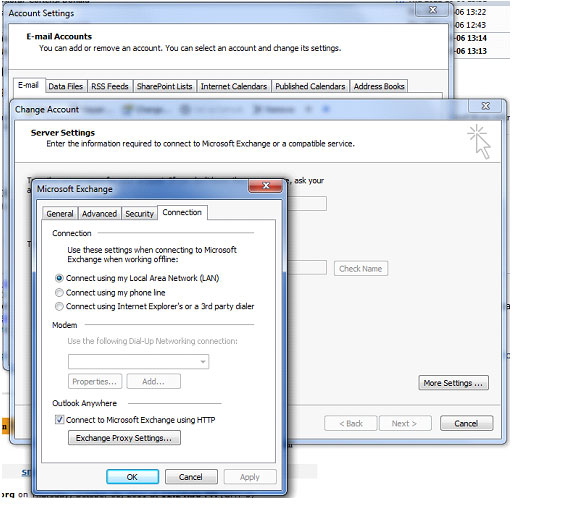
6. If you click the Exchange Proxy Settings…button, you can specify the URL for Outlook Anywhere, force SSL only, and specify the CN that should be in the certificate. This is usually going to be msstd:fqdnofyourCAS. You can also specify whether to favour traditional RPC connections if you want, where a “fast network” will be determined by your client to be LAN quality speed/latency connections to Exchange. Unless your CAS server is in the same building as you are, you won’t be on a “fast” network since latency is measured.
7. Outlook Anywhere works best when the client maintains a local cache of email in an OST. To ensure that, go to the Advanced tab, and make sure “Cached Exchange Mode” is clicked.
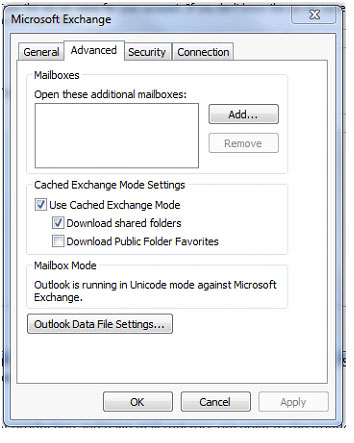
8. Click OK your way back to the main screen. You do not need to restart Outlook.
That’s all there is to that. As long as your client operating system trusts the Certificate Authority that issued the certificate used by your CAS (or TMG) and the name and dates are valid, Outlook will make RPC over HTTPS connections to your Exchange Server.
Troubleshooting connections
See that last line above. This depends upon a ‘valid’ certificate, meaning the client operating system has to trust it, the name must match what Autodiscover (or your manual configuration) specifies, and it has to be within the valid dates of the certificate. If any of those conditions are not met, Outlook will throw an error stating that the certificate is invalid. Other issues that can come up with a client include:
- If TCP 443 is not open from the client to the server, connections will fail.
- Travelling users should make sure they can hit the Internet if they are in a hotel or using a hotspot, before launching Outlook.
- If a proxy requires authentication, you may be prompted for that before Outlook can connect.
- If a remote user only connects to Exchange using Outlook Anywhere, does not use a VPN, and does not come into an office regularly, they may not receive a warning that their password is going to expire until it actually does.
- You can test connectivity to Outlook Anywhere using a web browser. Go to https://www.testexchangeconnectivity.com and select the Outlook Anywhere test.
You can also check the connection status of Outlook 2010 by CTRL-Right clicking the Outlook icon in the system tray, which exposes the option to check Connection Status and Test E-mail AutoConfiguration.
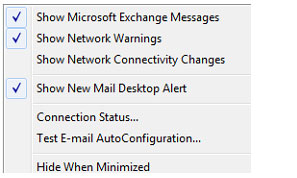
Clicking on “Connection Status…” will show you information like this:
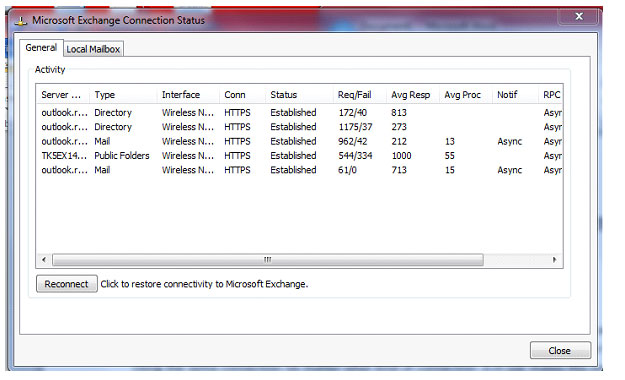
As you can see, my client has five connections to Exchange. The Conn type HTTPS means I am using Outlook Anywhere (RPC over HTTPS). You can also see the number of total and failed requests, and average response time. At the time of that screenshot, I was using a 3G connection, which explains the higher latency and number of failures. That kind of response time would crush a standard RPC connection, but using Outlook Anywhere, Outlook is very happy.
Now that you understand how Outlook RPC over HTTP connections work, that they use HTTPS, and with Exchange 2010 we call them Outlook Anywhere connections, you’re ready to take advantage of this superior connection method, and troubleshoot the rare issues that may arise!